Discord IDs & Mentions
To configure advanced features on SCNX, you sometimes need specific Discord IDs. These unique identifiers allow our system to precisely target the correct users, channels, or roles. This guide will show you how to find them and how to mention entities using their ID to customize your bot's behavior.
1. Enable Discord Developer Mode
Before you can copy IDs, you need to enable the Developer Mode in your Discord client. This is a built-in feature that unlocks advanced context menu options for power users and developers.
- Open your User Settings (the gear icon next to your name).
- Go to Advanced (located under the "App Settings" category).
- Toggle Developer Mode to On.
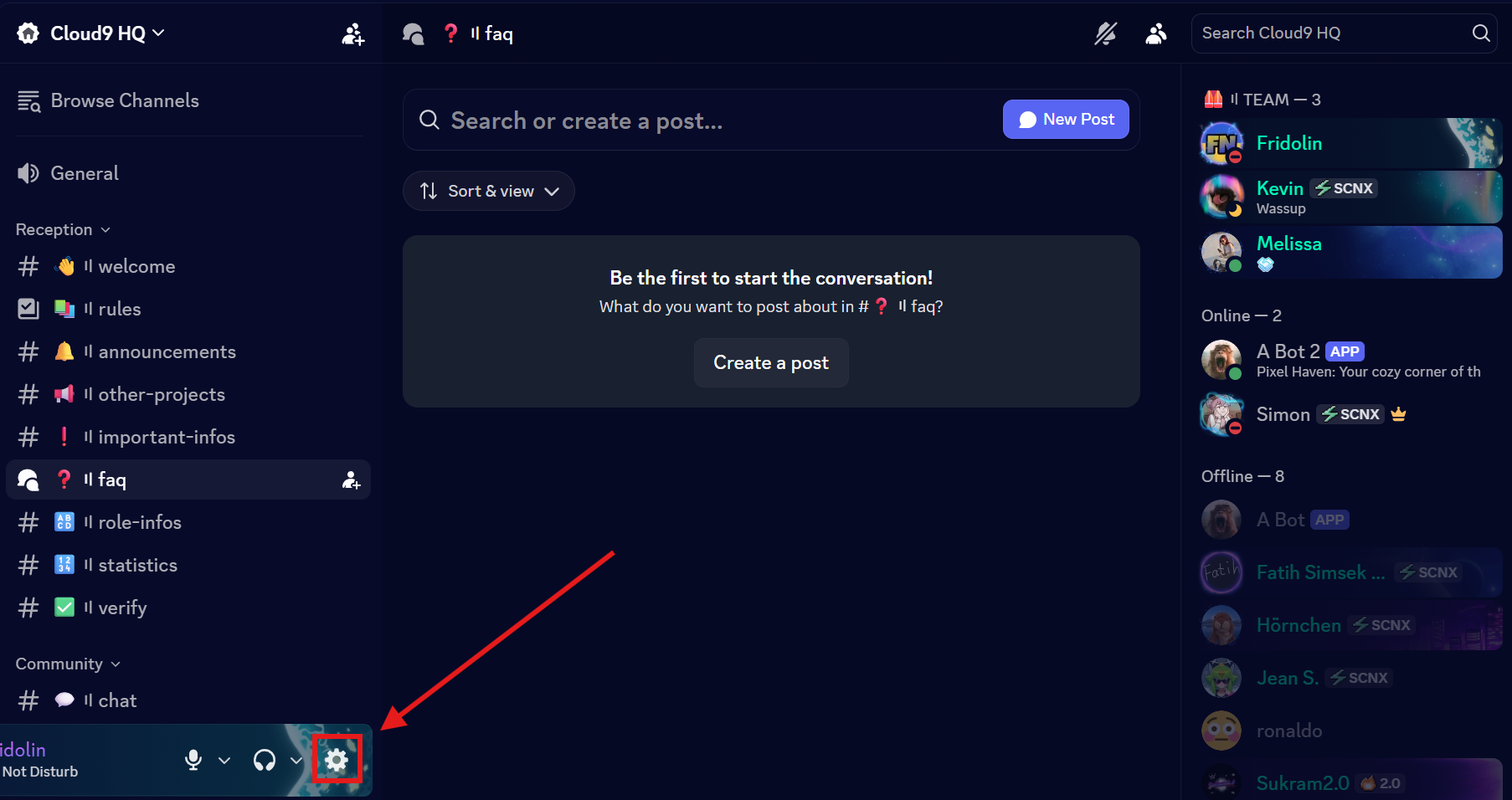
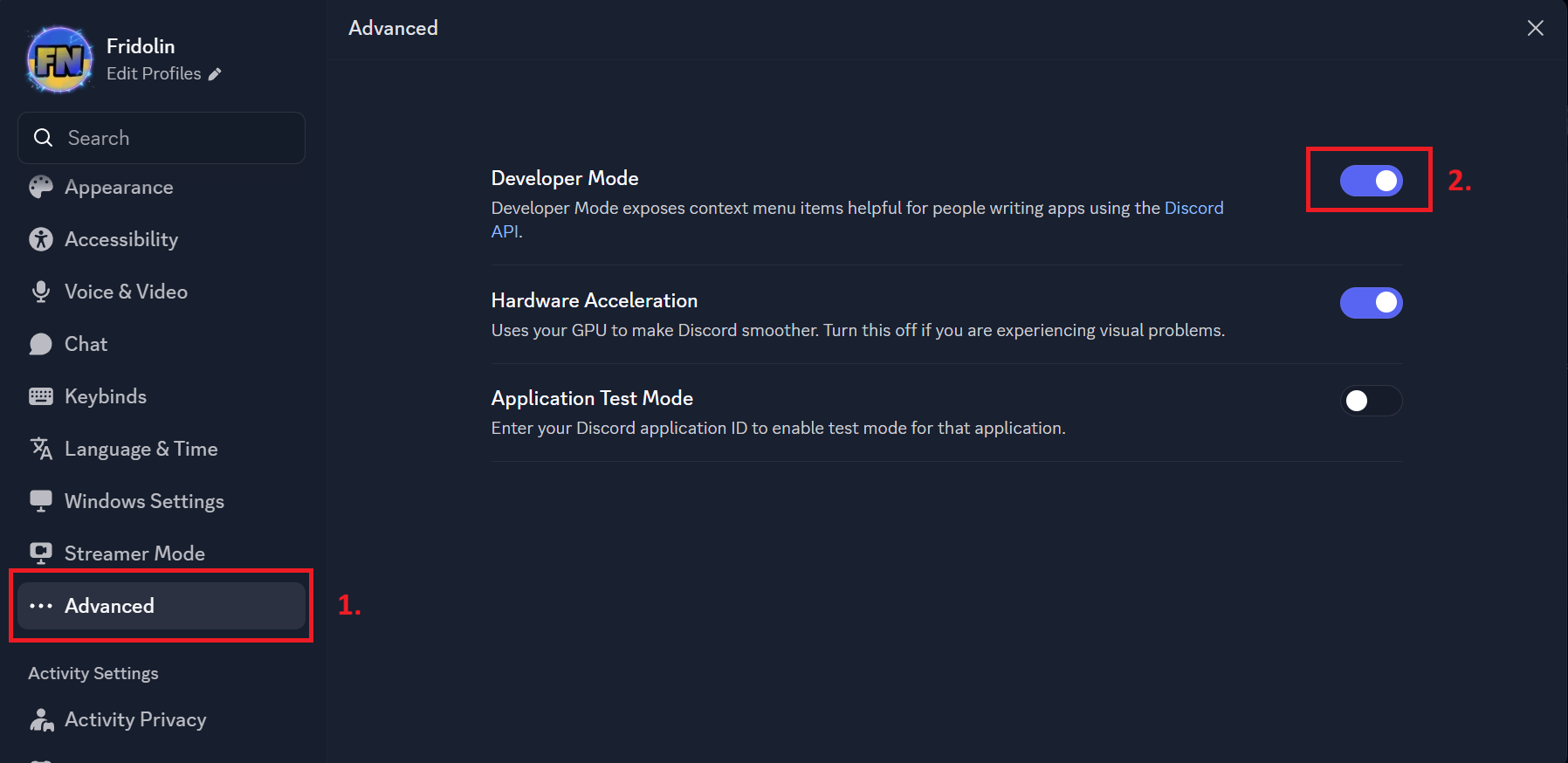
2. Copying IDs
Every entity on Discord — whether it's a user, a server, or a single message — has a unique ID. Once Developer Mode is active, you can right-click almost anything to retrieve it. IDs are used by bots to identify entities as they don't change - even if the name of the entity has changed.
Copy User and Bot IDs
- Right-click on the user's name or avatar.
- Select Copy User ID at the bottom of the menu.
- The ID is now in your clipboard - you can now paste it into SCNX or elsewhere 🚀
- On Mobile: Long-press the user's profile, tap the three dots (
...) in the top right, and select "Copy User ID".
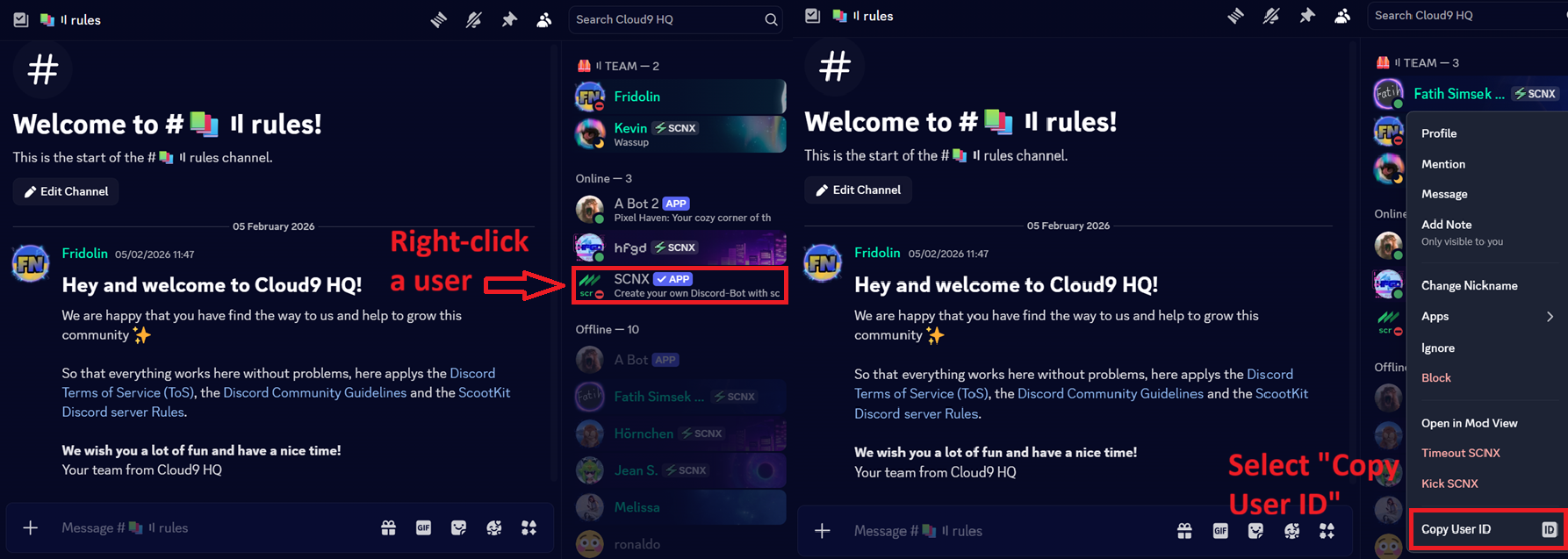
Copy Channel IDs
- Right-click a channel name in your sidebar.
- Select Copy Channel ID.
- The ID is now in your clipboard - you can now paste it into SCNX or elsewhere 🚀
- On Mobile: Long-press the channel name, scroll down, and tap "Copy Channel ID".
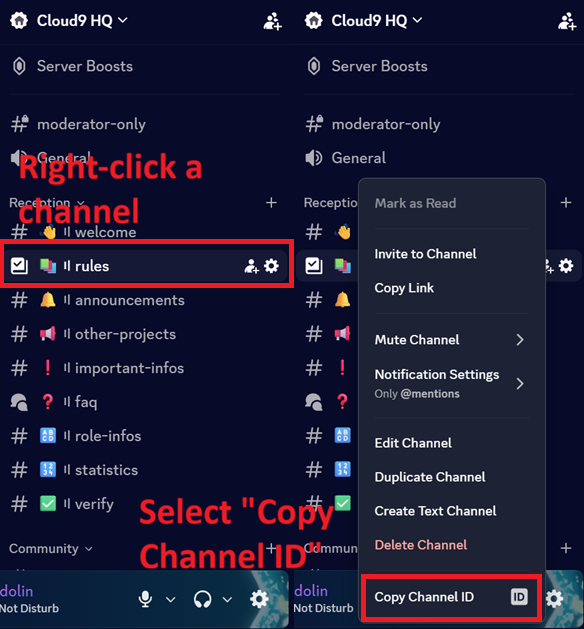
Copy Role IDs
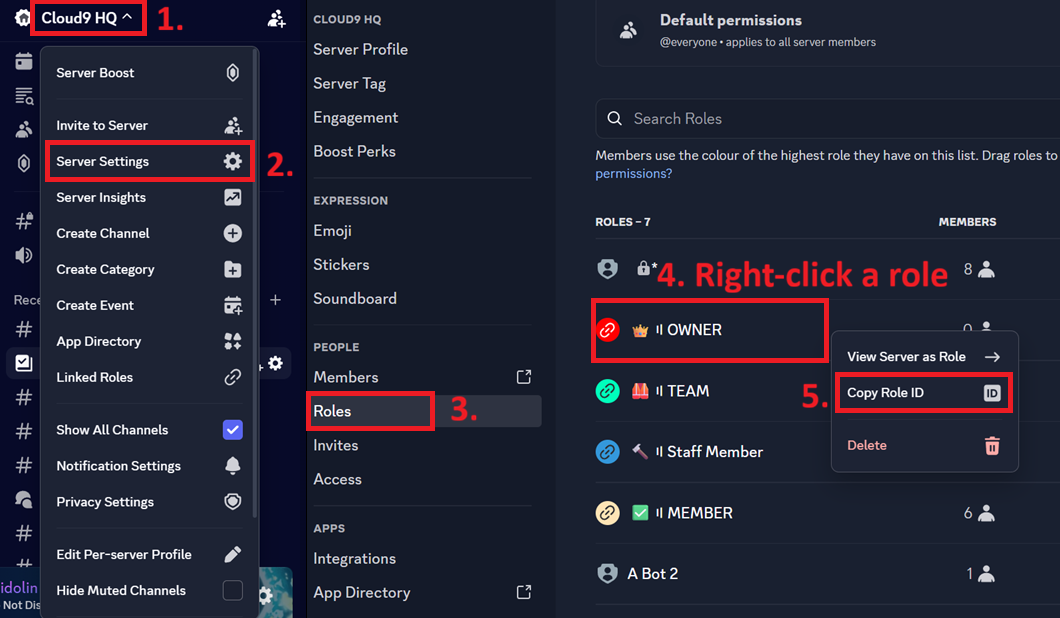
- Go to Server Settings > Roles.
- Right-click the specific role name.
- Select Copy Role ID.
- The ID is now in your clipboard - you can now paste it into SCNX or elsewhere 🚀
- On Mobile: Go to Server Settings > Roles, tap the role, and tap the "Copy ID" icon in the top right.
Copy Message IDs
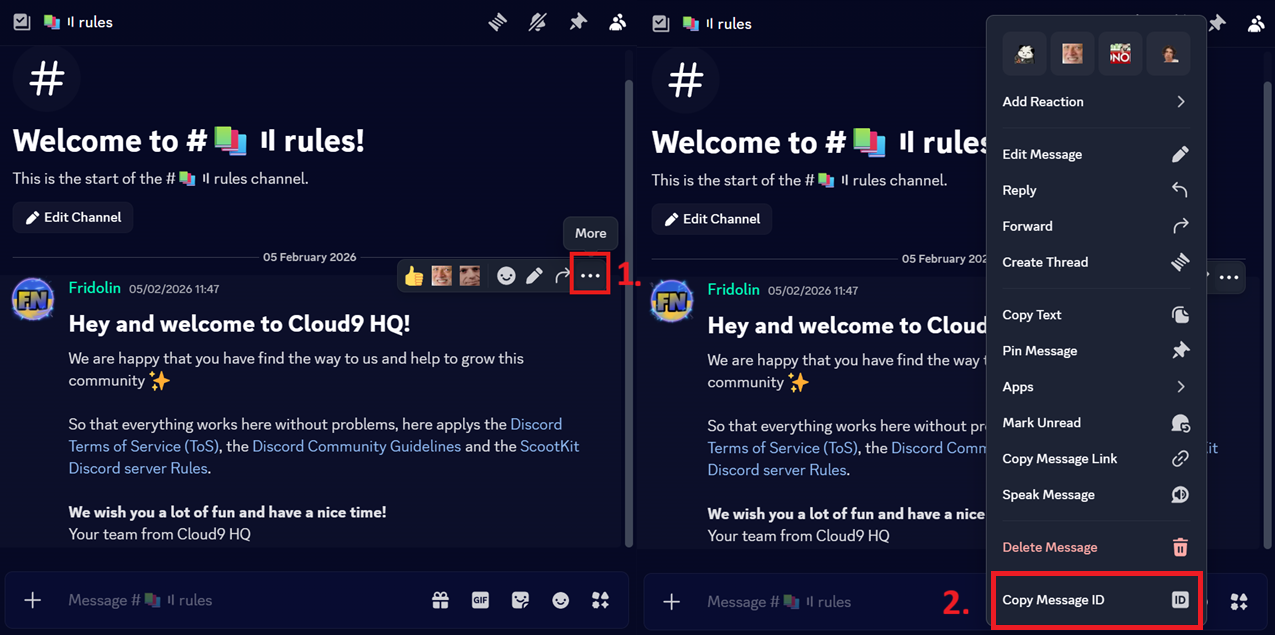
- Hover over the message and click the three dots (More) on the right side.
- Select Copy Message ID at the very bottom of the menu.
- The ID is now in your clipboard - you can now paste it into SCNX or elsewhere 🚀
- On Mobile: Long-press the message, scroll to the bottom of the menu, and tap "Copy Message ID".
Copy Server IDs (Guild IDs)
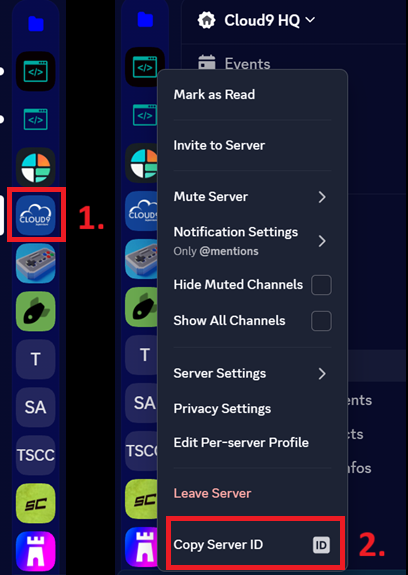
- Right-click the Server Name at the top of your channel list or right-click the Server Icon.
- Select Copy Server ID at the bottom of the list.
- The ID is now in your clipboard - you can now paste it into SCNX or elsewhere 🚀
- On Mobile: Tap the three dots next to the Server Name at the top of the channel list, scroll down, and tap "Copy Server ID".
3. Mentioning Elements via ID
Sometimes you need to mention a user, role, or channel within a bot response (like a custom embed or a welcome message) where a standard "@" mention might not work. Using the raw ID syntax ensures the mention resolves correctly once the bot sends the message.
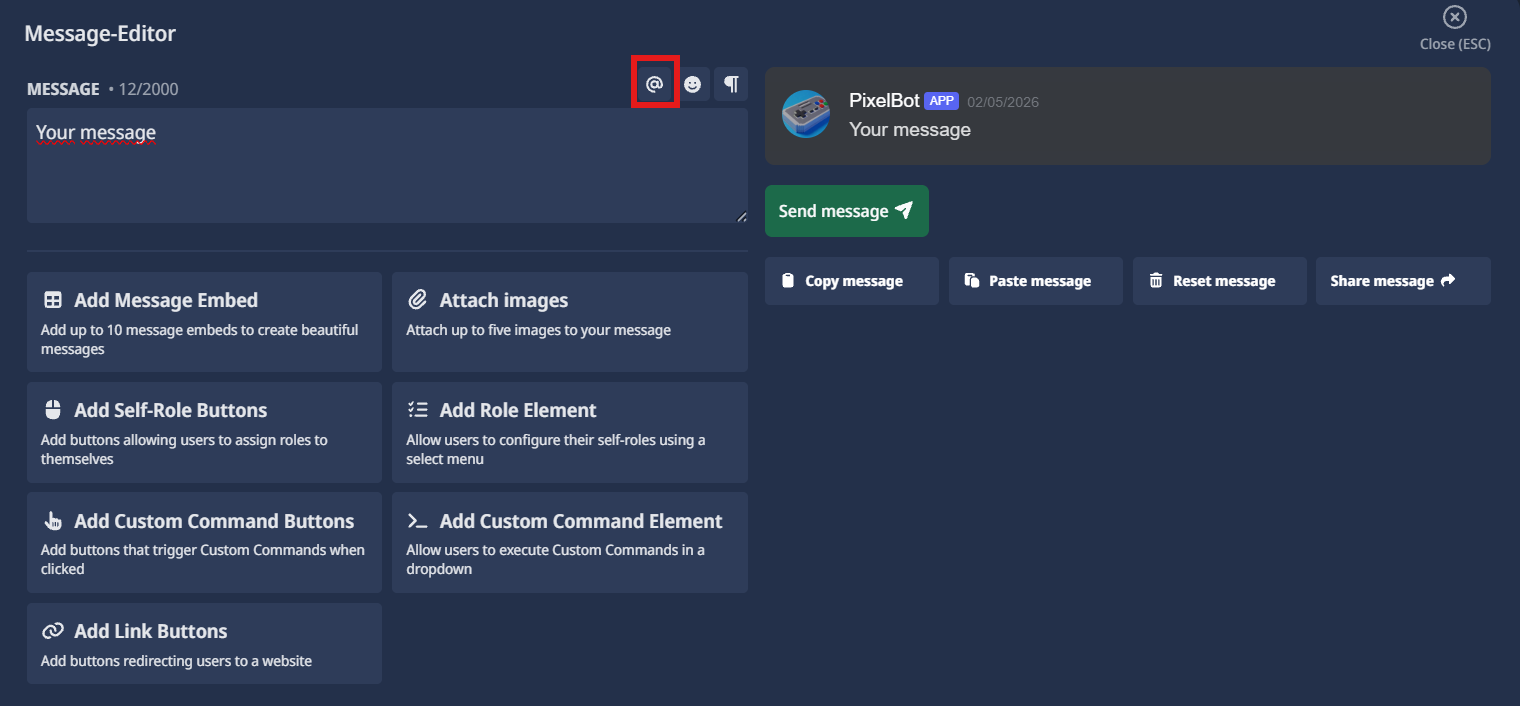
In the SCNX Message-Editor, you often don't have to type the syntax manually. You can simply click the "@" button above the text field to easily select and insert channel or role mentions.
Mention Syntax Table
If you are writing raw text or configuring advanced fields, use the following syntax:
| Entity | Syntax | Example | Preview |
|---|---|---|---|
| Users and Bots | <@USERID> | <@787026352191701033> | @SCNX |
| Channels | <#CHANNELID> | <#1113165263295230002> | #news |
| Roles | <@&ROLEID> | <@&1113115210048360489> | @Moderator |
Mentioning Timestamps
If you want to include dynamic time displays, Discord uses a special Unix-Timestamp format.
To create a timestamp, you wrap a Unix-Time (seconds since 1970) in a specific code. For example: <t:1700000000:R>.
- Dynamic: It automatically adjusts to the local time of every user.
- Versatile: Can show relative time ("5 minutes ago"), full dates, or just the time.

You can find a detailed guide and a generator for these here.
Troubleshooting
The "Copy ID" option is missing
- Ensure that Developer Mode is toggled to "On" in your Discord settings (User Settings > Advanced).
- If you just enabled it, try restarting your Discord client (press
Ctrl + Ron Desktop). - On Mobile, ensure you are using the latest version of the Discord app.
The mention appears as raw text instead of a name
- Double-check that the ID you copied is correct and belongs to the right entity type.
- Make sure you have included the required symbols like
<,@,#,&, and>. - If the ID belongs to a user or role that is not in the server where the message is sent, Discord may show the raw ID.